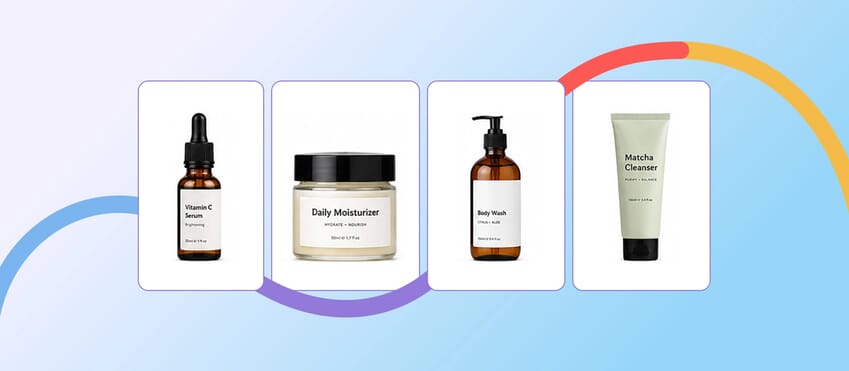
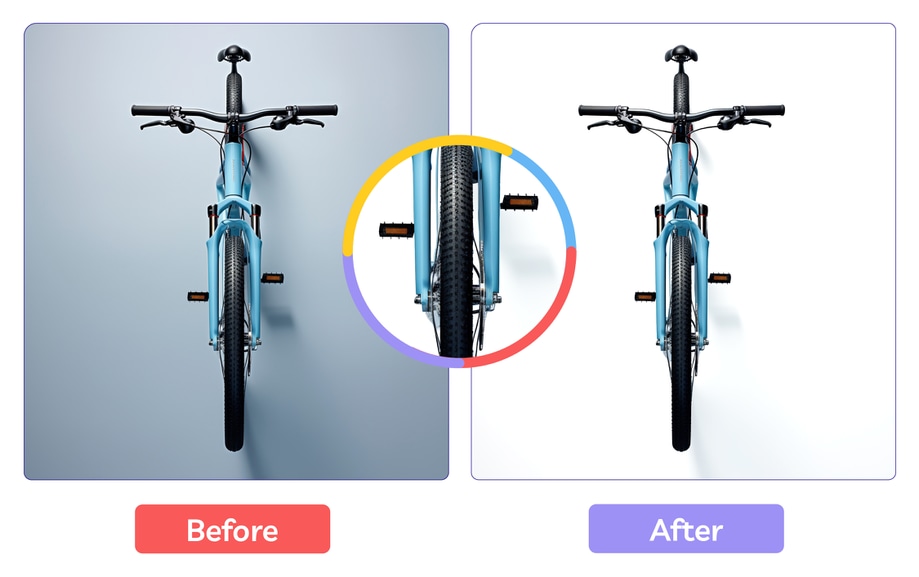
Removing the background from a product image is often the first step in preparing photos for ecommerce.
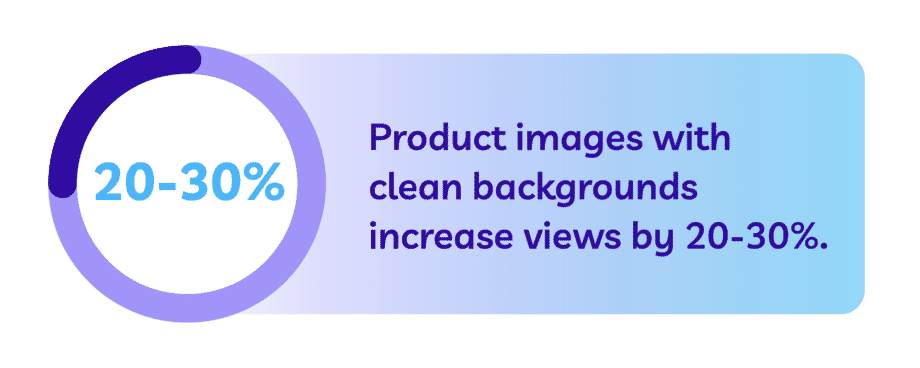
A clean background helps the product stand out and makes the listing look more professional. It also helps the image convert better!
Today there are dozens of tools that promise to remove backgrounds automatically.
Some are simple web apps powered by AI. Others are full design programs with more advanced editing controls.
With so many options available, it’s hard to know which background removal tool actually works best.
Some tools are designed for speed. Others are designed for precision.
And depending on the complexity of the image, the difference between those two approaches can become very noticeable.
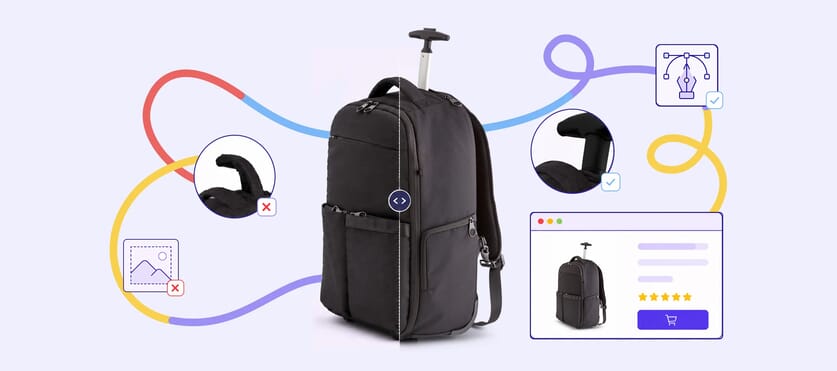
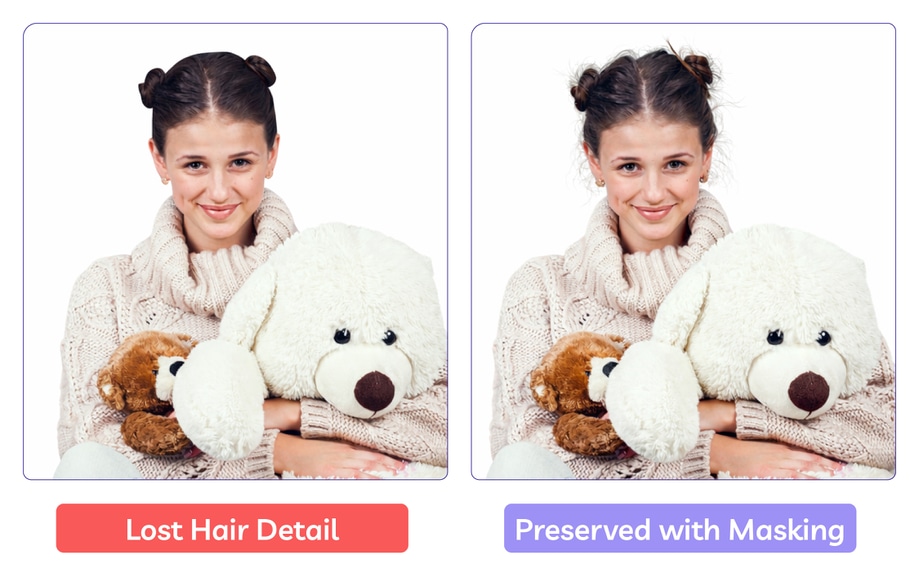
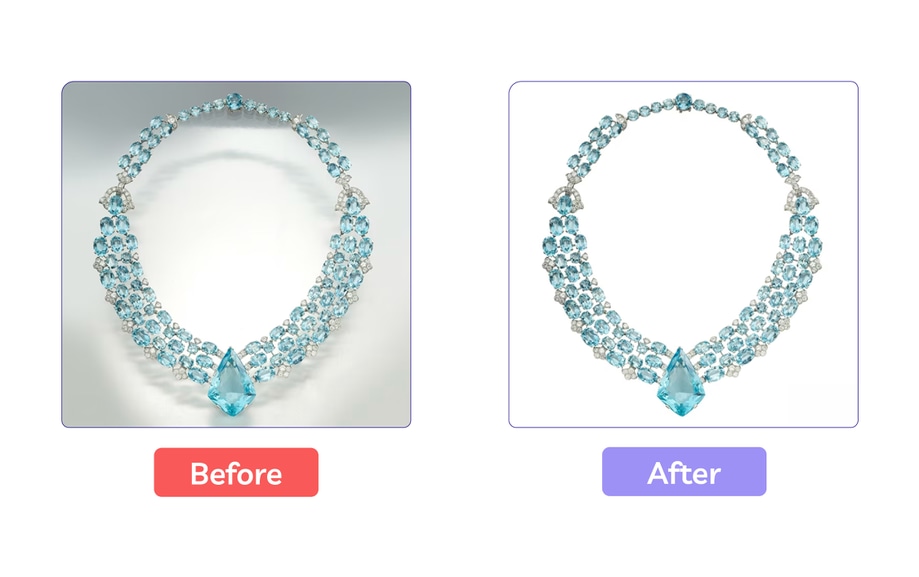
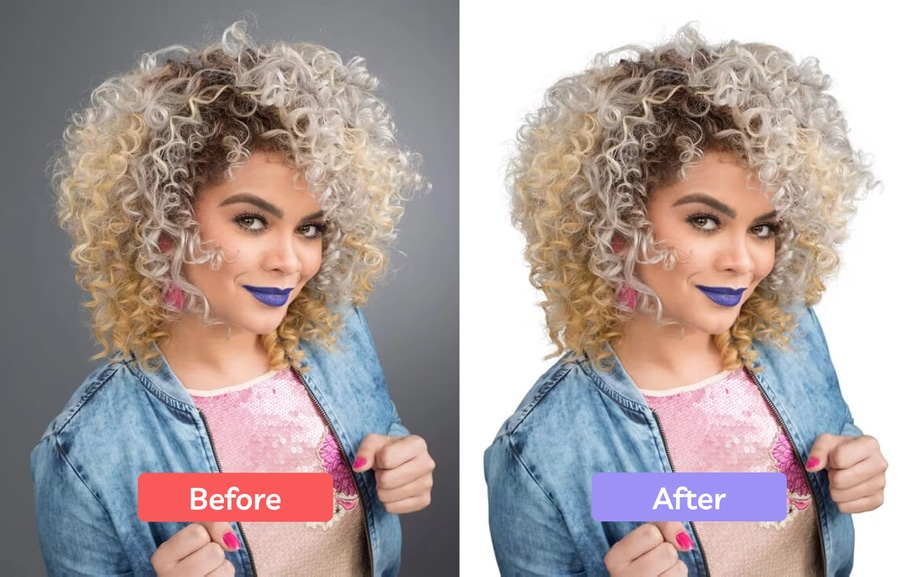
In this example, you can clearly see how an automated tool loses fine hair details, while image masking preserves the delicate flyaway strands, resulting in a more accurate and ’polished ‘real’ final photo.
What Makes a Good Background Removal Tool?
Most automated removers work in a similar way.
They analyse the image and try to detect the main subject by identifying shapes, colour contrast, and common object patterns.
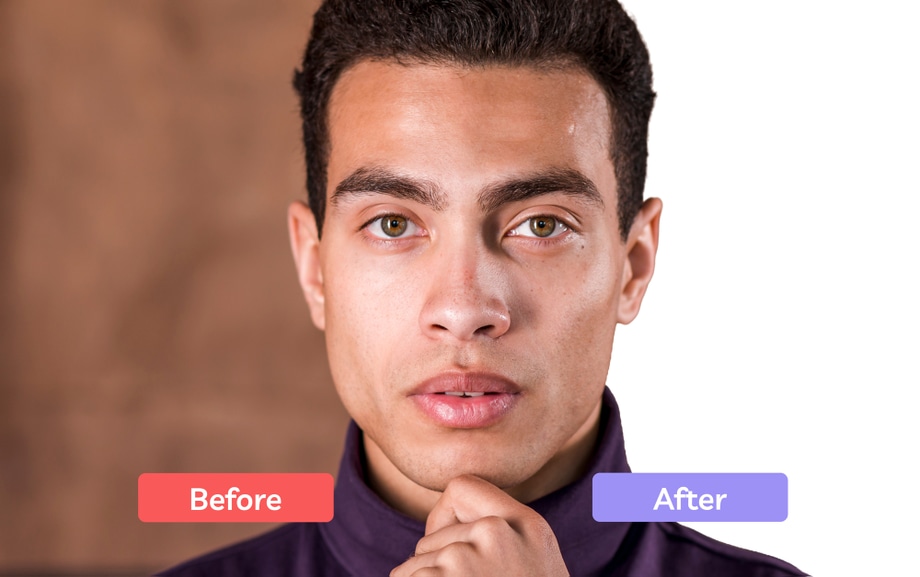
For simple images - such as a person standing against a plain background - this works surprisingly well.
How Background Removal Tools Fail
Once the image becomes more complex, the results start to vary.
Details like hair, shadows, glass, reflections, or textured fabrics are much harder for automated tools to interpret.
Common problems you’re left with after using an automated background removal tool include jagged edges, awkward halos, “helmet hair,” floating objects, and lighting that just doesn’t match.
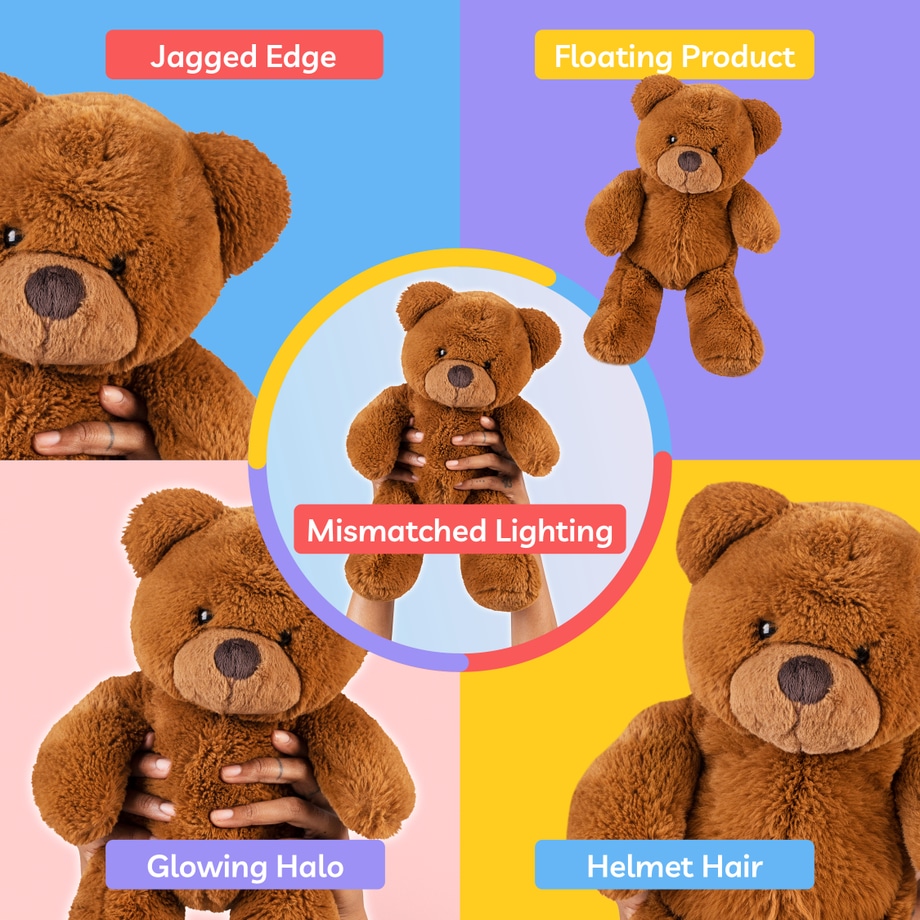
In the end, background removal tools can be a helpful starting point, but they usually need a bit of manual tweaking or more advanced techniques like masking to handle tricky, complex images.
This is especially important for professional projects where accuracy and attention to detail really matter and the reason why professional editors still rely on techniques like clipping paths and image masking.
When to use Clipping Path vs Image Masking
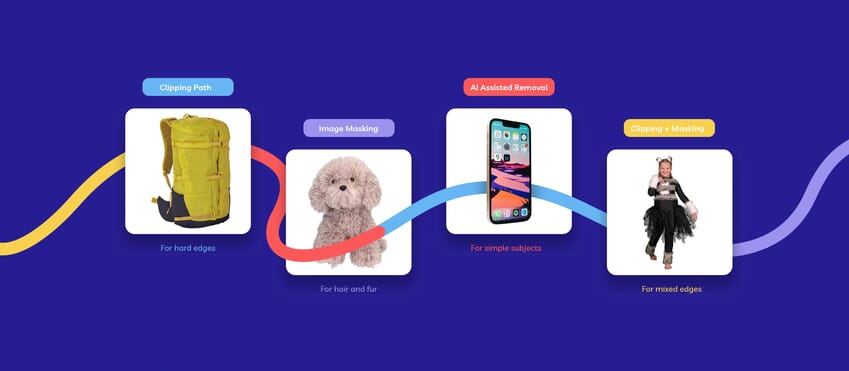
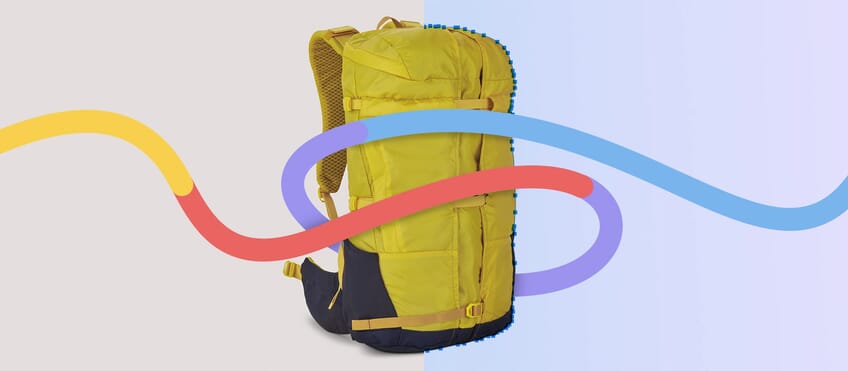
When working with hard-edged, geometric objects like furniture or electronics, clipping paths are your go-to tool. They help you create clean, scalable vectors with precision.
On the other hand, for more intricate subjects with soft edges or transparency - think hair, fur, glass, or clothing - image masking is the better choice. It ensures edges blend naturally for a more polished look.
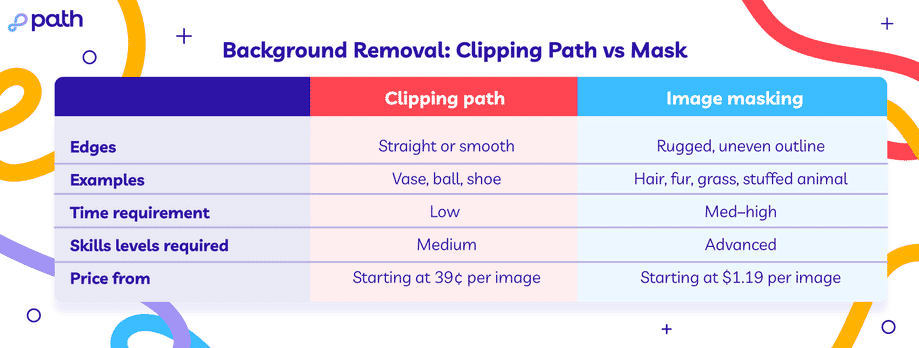
Clipping paths are great for their accuracy and compact file sizes, while masking shines when you need detailed, non-destructive editing.
Popular Remove BG Tools
Some of the most widely used automated background removal tools include:
- remove.bg
- Pixelcut
- Canva Background Remover
- Adobe Photoshop’s Remove Background feature
Behind the curtain, these apps rely on machine-learning models that try to recognise what part of the image is the subject.
When it works, the result can feel almost instant. But once the image becomes more complex, the results can become less reliable.
If your product blends into the background, or the object has lots of tiny cut-outs, the software has to start guessing where the edge should be - and those guesses are not always correct.
In these cases, professional background removal services are the best way forward.
1. Instant AI Tools: remove.bg & Pixelcut
If you’ve searched for a background remover online, these tools are usually the first results you’ll see. They are designed around one thing: speed.
Pros
They work almost instantly. Upload an image and the background disappears within seconds, all inside a browser window.
For quick social posts, presentations, or mockups, this kind of speed can be extremely useful.
Limitations
These tools rely entirely on automated detection. When the edges are clear and the subject stands out from the background, the results can look surprisingly good.
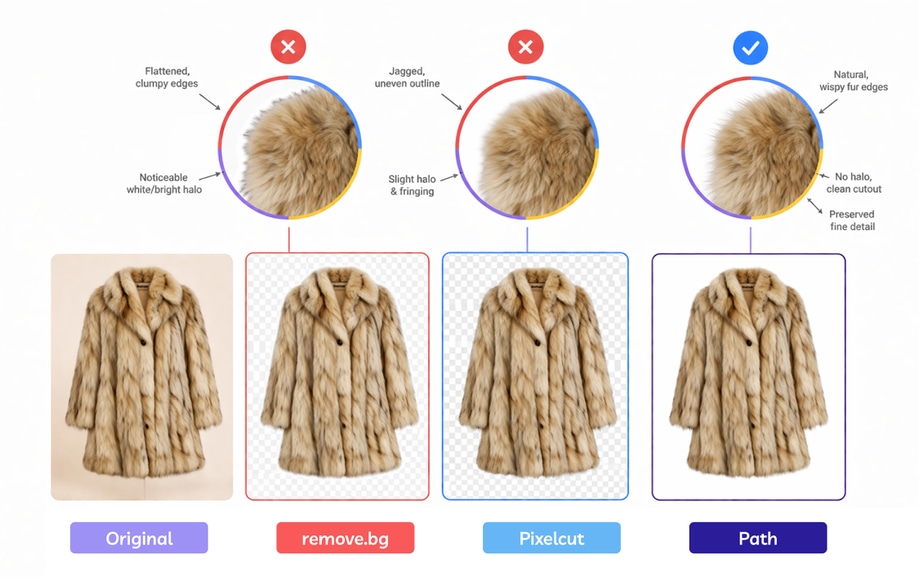
But once the image becomes more complex, for example when a product blends into the background or contains fine details like hair, lace, or mesh, the results can start to falter.
Verdict
Best suited for casual images, quick social graphics, and rough mockups.
2. The Design All-Rounder: Canva
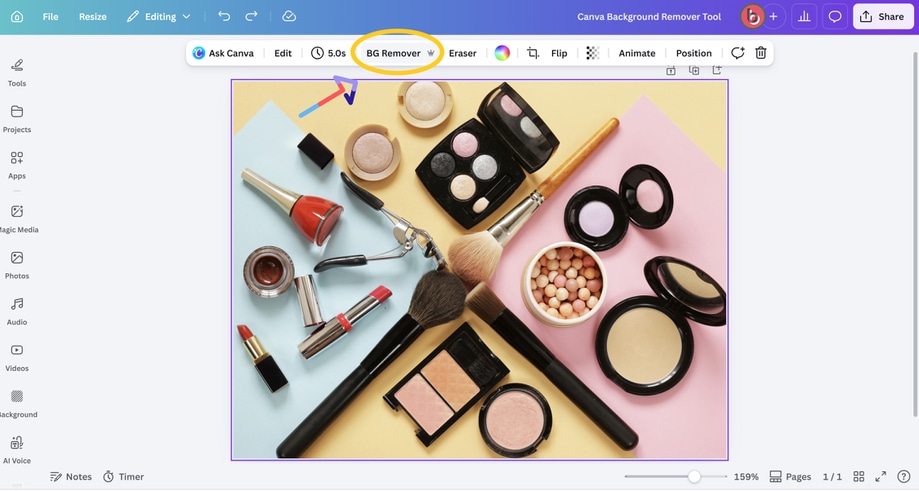
Canva includes a background remover inside its design platform, making it convenient if you’re already building marketing graphics using the app.
Pros
The main advantage boils down to workflow. You can remove a background and place the product directly into a poster, ad, or social media layout without switching tools.
Limitations
The editing controls are limited. If the automatic selection removes part of the product or misses a section of the background, there are fewer options to refine the result.
Verdict
Useful for small businesses creating simple marketing graphics where speed matters more than perfect edge detail.
3. The Industry Standard: Adobe Photoshop
Photoshop approaches background removal differently.
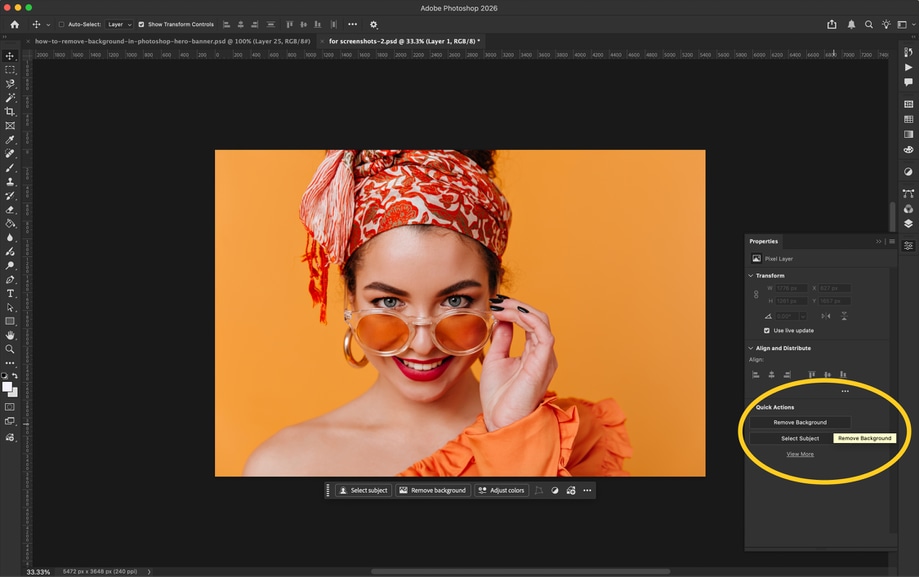
It includes automated tools such as Select Subject and Remove Background, but it also allows editors to refine the result manually.
Pros
Full control. If the automated selection is imperfect, tools like the Pen Tool, Select and Mask, and layer masks allow the editor to correct the edges.
Limitations
It has a steep learning curve and a monthly subscription cost. Even with its photoshop remove background features, getting a “perfect” cut on complex items still takes significant time and careful refinement.
Verdict
Best for professional photographers and graphic designers who have the time to edit individually.
4. The Scalable Solution: Professional Editing Services
At some point, many ecommerce brands realise the challenge isn’t just removing a background - it’s doing it consistently across hundreds or thousands of product images.
Editing software works well for small batches. But as catalogues grow, manual editing can quickly become time-consuming.
Pros
Professional editing services combine software with human judgement.
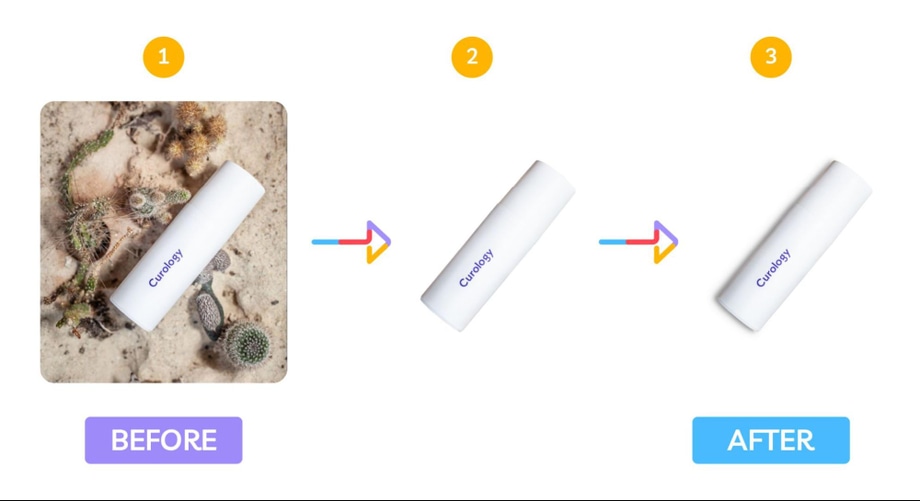
Editors can correct difficult edges, preserve fine details with image masking, and ensure shadows and colours remain consistent across the entire catalog.
Limitations
Unlike automated tools, the result is not instant, although turnaround times are usually fast.
Path offers perfectly edited images in as little as 6 hours.
Verdict
Ideal for ecommerce teams and agencies that need consistent, pixel-perfect product images at scale.
Background Removal Comparison at a Glance
Each tool solves a slightly different problem. Some prioritise speed, others prioritise control.
Here’s a quick overview of how the most common options compare.
| Feature | AI Web Tools (remove.bg) | Canva Pro | Adobe Photoshop | Professional Editing Service |
| Skill Level | Beginner | Beginner | Intermediate–Expert | None |
| Edge Precision | Low–Medium | Medium | High | Pixel-Perfect |
| Complex Edges (hair, lace) | Often struggles | Often struggles | Manual fixes possible | Specialised masking |
| High Volume Editing | One image at a time | One image at a time | Time-consuming | Built for scale |
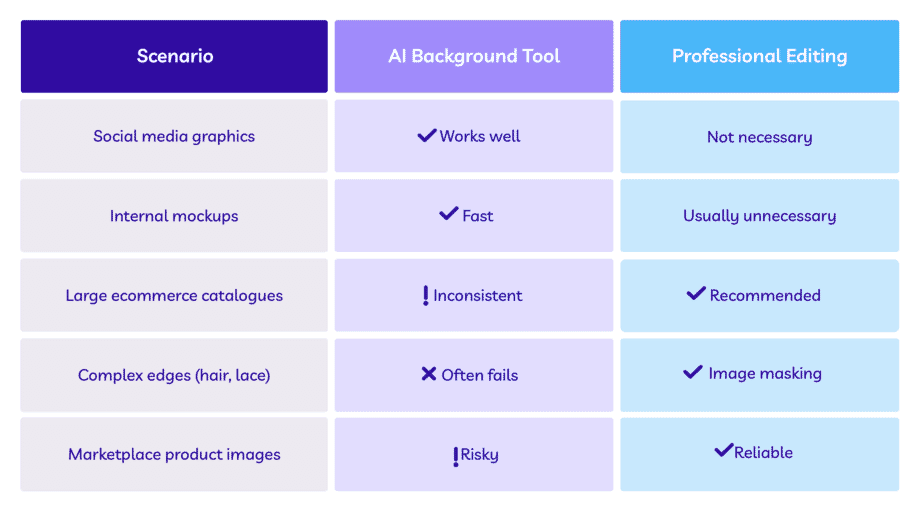
When to Use AI Tools vs Professional Editing
Both approaches have their place.
AI tools are extremely useful for quick edits, while professional editing is usually better for high-quality product images.
The “Human” Difference
Automated background removers have made editing much quicker, but they still can’t judge an image the way a person can.
Software doesn’t know how your product is meant to look on your website. It can’t tell whether a shadow feels natural, or whether a small texture detail is something customers should actually see.
For quick graphics or simple images, automated tools are often good enough.
But when you’re preparing product photos for an ecommerce store, those small details start to matter.
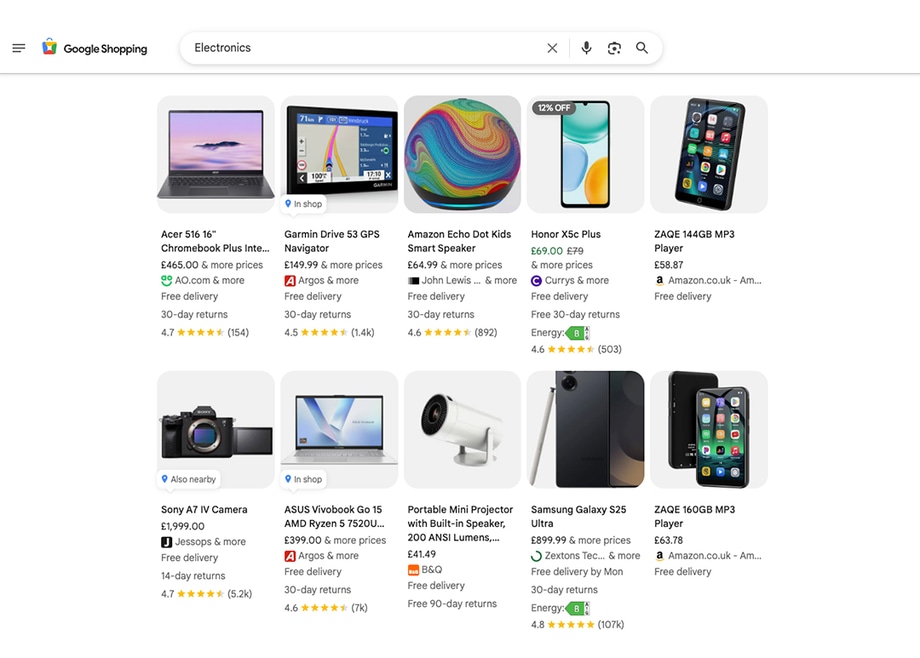
Edges need to look clean, shadows need to feel believable, and colours need to stay true to the product.
That’s where manual editing still plays an important role. And where many ecommerce teams eventually move toward professional background removal services.
Need perfectly clean product cut-outs without spending hours fixing edges?
Our team of professional editors handles background removal, clipping paths, and image masking for ecommerce brands around the world.
Frequently Asked Questions
What is the best background removal tool?
The best background removal tool depends on what you need.
AI tools are useful for quick edits and simple images. However, for product photography and ecommerce listings, professional editing or manual tools like Photoshop usually produce more reliable results.
Are AI background removal tools accurate?
AI background removers can work well on simple images with clear contrast between the subject and the background.
However, they often struggle with complex edges such as hair, lace, reflections, or transparent materials. In these cases, techniques like image masking or clipping paths are usually more accurate.
Is Photoshop better than AI background removal tools?
Photoshop provides more control than most automated tools.
While its AI features can quickly detect a subject, editors can refine the edges manually using masks, clipping paths, or the Select and Mask workspace. This makes Photoshop a better option for detailed image editing.
When should you use professional background removal services?
Professional editing services are usually best for ecommerce catalogues or marketing images where consistency matters. Instead of editing images one by one, professional editors can ensure clean edges, correct shadows, and consistent lighting across an entire product catalogue.
Is there a free tool to remove background from an image?
Yes. Several tools allow users to remove a background from an image for free, including remove.bg, Pixelcut, and Canva’s background remover. Free versions typically limit image resolution or the number of downloads. For high-resolution product images or large catalogues, professional editing or manual tools like Photoshop are usually more reliable.